
Frequently Asked Questions
Students
Why would you use the digital library?
The digital library provides you with access to scientific literature and resources. You direct your search towards specific resources and you have access to various databases and information sources. This allows you to create more specific search request compared to a generic search engine.
It is important to define your search strategy before you start looking for sources. Part of the search strategy is determining what database or information source is the best to start your search.
Structure of the portal
The portal of the digital library allows you to easily search for library sources. You get access to databases and search forms, can read about the latest news and look for answers to frequently asked questions (FAQ's).
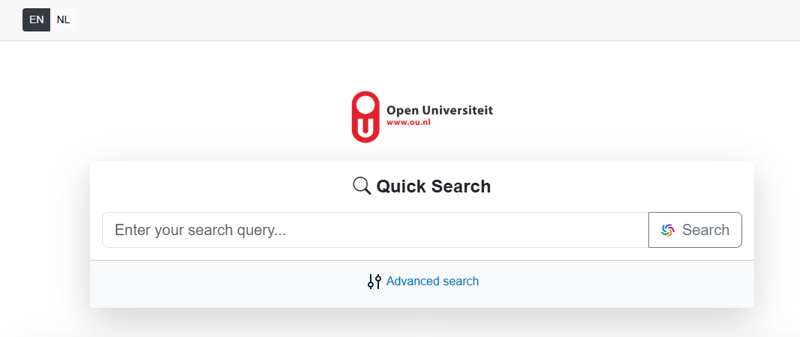
Quick search
You use the quick search to quickly search for articles, journals, databases and OU publications by entering a few keywords in the field. The quick search accesses multiple databases and most of the library sources in our collection, as well as in some open access sources.
Advanced Search
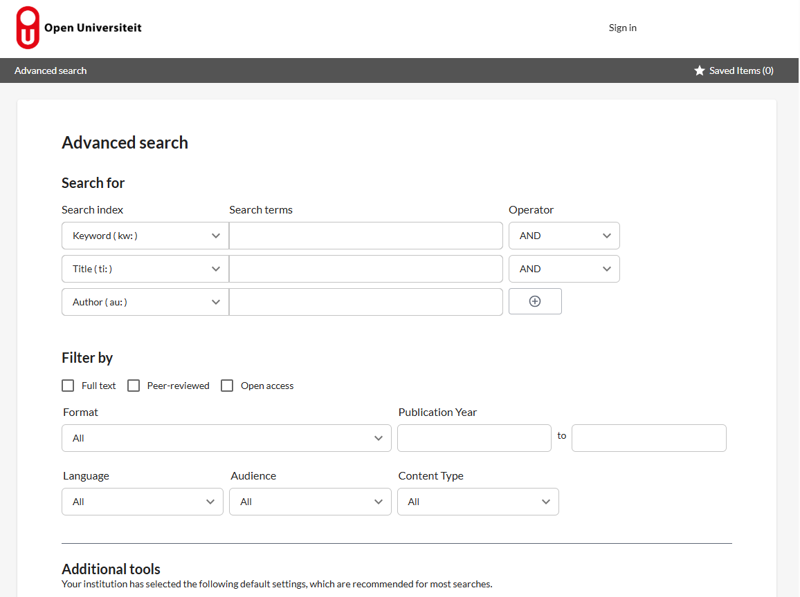
The advanced search form contains multiple types of fields, allowing you to be more specific in your search, by indicating in what field to search, in which period and what type of publication or domain.
Tutorial
This page explains how to use the digital library. In addition to the current explanation, you can watch a short video explaining the use of the digital library. You will notice that the layout has changed a little.
Databases
You can start your search through a specific database: some database are domain-specific, others offer publications of a particular publishers. Click on the "info" icon next to the database title for the description of the database.
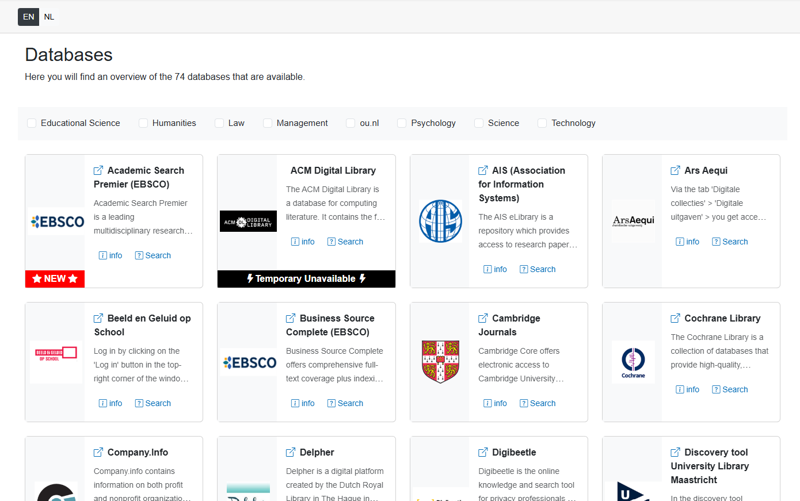
Explore the databases to find out which one suits your search best.
In most databases you can restrict your search to publications that are accessible via the library.
Journals
Use Journals to search for titles of journals with online access and to browse topics, publisher or database to access journal articles.
E-books
Use e-books to search for books that are available in digital format (PDF of epub).
News
Watch the news section for changes in our collection and other relevant information.
Frequently Asked Questions (FAQ's)
In this section you will find answers to some frequently asked questions. If you cannot find the answer you are looking for, you can ask a question via 'Ask your librarian'.
Terms of use
Finally we draw your attention to the terms of use.
In case this website provides access data and information of third parties, for example the databases, the terms of use of these third parties apply.
The copyright of the online content that is available through this website belongs to the respective parties. Therefore it is not allowed to copy, download, change or share this content without prior and explicit permission of the respective party. You are not allowed to use this content for commercial purpose. The only purpose permitted for use of the content is for your own study, practice/exercise or personal use. You are obliged to adhere the terms of use as detailed with the online content, amongst which the databases and e-journals.
Quick Search is the discovery tool of the Digital Library, which makes it possible to find articles, journals, databases and OU-publications. It is easy to use and provides quick results.
Try the Advanced search option to make combinations of search terms. A manual is available via the Advanced search (Help).
Searches will be done in:• the majority of the scientific information the Digital Library OU provides• supplemented with carefully selected open access sources
You will find:• e-journals, e-articles, open access e-books and databases licensed for the OU
You won’t find:• articles from a part of the e-journals (especially in the field of law) which are not yet integrated in the Quick Search• specific publications like the ones from Kluwer Navigator
For questions: Ask Your Librarian.
If you know the journal in which the article is published, you use the "Journals" section and search for the journal name.
If you are looking for articles on a particular topic or the title of the article is known, use the Quick Search option or a database. Depending on your subject, some databases could be more relevant than others. Use the Info buttons to make your selection.
Via "Libraries Worldwide" option you can search through the collections of almost all university libraries worldwide.

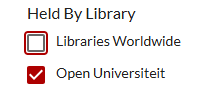
If the book found and selected appears to be present in more than one location it shows automatically the nearest by library. OU students are allowed to use the Dutch University Libraries. Some of them also offer their Interlibrary Loan service to OU students, which allows you to request books from other libraries. This service is not free of charge however.
For an overview of contact adressess of these Dutch University Libraries and their available services you can consult the general information under My Workplace at studienet (http://studienet.ou.nl).
Students can become members of Dutch university libraries free of charge. You will need your digital student card and registration confirmation for this. Not all universities accept the digital student card, but if you can show that you can log in to the student portal on your phone, that is usually sufficient.
Students can also join the Koninklijke Bibliotheek (KB) in The Hague for a fee, which gives access to e-journals and e-books.
Yes, you can. To do so, click the ‘Sign in’ button in the bar at the top of Quick Search and log in with your OU account.
Then, click ‘Save’ next to the search results you want to keep. You can find your saved results by clicking the ‘Saved items’ button.
Would you like to keep the search results for longer? In ‘Saved items’, select the results you want to keep and click ‘Create list’. You can then email the list to yourself.
PLEASE NOTE: Saved lists are automatically deleted every month. If you want to keep a list for longer, make sure to email it to yourself in time.
You can ask all your questions 24/7 online by using Ask your librarian. You will receive an answer within one workday.
The library committee maintains and evaluates the library collection and the Digital Library portal. It is also responsible for initiating new library services and the communication of library matters to students and staff.OU students are represented in this committee by Josefien Lansbergen.
Als je rechtstreeks via de digitale bibliotheek (https://bibliotheek.ou.nl) zoekt naar bronnen, dan zijn deze toegankelijk. Providers van tijdschriften en databases kunnen achterhalen dat je je op de campus bevindt en geven je toegang (mits de OU toegangsrechten heeft tot de bron). Wat nu als je een bron langs een andere route vindt, bijv. via Google Scholar of via de website van de uitgever, en je niet bent ingelogd als OU-student of –medewerker? Om eenvoudig toegang te krijgen tot paywalled bronnen maakt de digitale bibliotheek gebruik van een proxy, in dit geval EZProxy. Het is in verschillende webbrowsers mogelijk om, na het bereiken van een webpagina, de URL zodanig aan te passen dat dezelfde pagina wordt bezocht via deze proxy.Voorbeeldsituatie:Je bent op een willekeurige plek (dus niet de OU-campus) en niet ingelogd via een VPN-connectie (waardoor het internet denkt dat je op de campus bent). Je komt vervolgens met je browser via online zoekopdracht of een verwijzing terecht bij een artikel, journal, database, of uitgever, maar je komt niet verder doordat de full text achter een paywall zit (en de OU wel toegang toe heeft); in dat geval kun je de link met behulp van de browser extensie “EZProxy redirect” via ons loket (EZProxy) laten gaan door te klikken op het icoontje in je browserbalk (de extensie/plugin – later meer hierover) waardoor het internet alsnog denkt dat je op de campus bent.Deze aanvulling geeft je dus toegang tot de full text achter een paywall op het moment dat de OU die toegang kan bieden. De benodigde browser extensie voor Chrome:
- Ga eerst naar:https://chrome.google.com/webstore/detail/ezproxy-redirect/gfhnhcbpnnnlefhobdnmhenofhfnnfhi om EZProxy direct te downloaden.
- Deze installeer je zoals iedere browser extensie: klik op installeer.
- Daarna moet je nog eenmalig in de settings de juiste EZProxy URL invoeren via: Preferences > Extensions > EZProxy redirect > Options
- Vink EZProxy url aan en vul in: http://login.ezproxy.elibtruetrue.ub.unimaas.nl/login?url=$@?
- Save > klaar!
Als je nu bij een document komt en er niet bij kunt, klik op het boekje bovenin de browser. Deze zal dan connectie via de bibliotheek maken. De benodigde browser extensie voor Firefox:
- Download EZProxy redirect op: https://addons.mozilla.org/nl/firefox/addon/ezproxy-redirect-foxified/
- Klik op toevoegen aan Firefox.
- Klik vervolgens op Add-ons en ga naar het Extensions tabblad
- Klik op de puntjes aan de rechterzijde van de EZProxy Redirect Foxified en kies opties.
- Kies in de keuzelijst select school voor Open Universiteit.
- Klik op Save
Als je nu bij een document komt en er niet bij kunt, klik op het logo van EZProxy bovenin de browser. Deze zal dan connectie via de bibliotheek maken. Slimme bookmark in Safari:Voor Safari bestaat er op dit moment geen extensie die toegang via de proxy regelt. Wel kun je een slimme bookmark toevoegen die de URL van de pagina waarop je momenteel bent kan herschrijven. Het werkt als volgt:
- Ga naar Bookmarks > Add bookmark
- Kies bij Add this page to: voor Favorites (zodat de bookmark in je toolbar komt te staan)
- Geef de bookmark een naam, bijvoorbeeld OU EZProxy
- De bookmark is nu toegevoegd, maar de URL moet nog aangepast:
- Ga naar Bookmarks > Edit bookmarks, en zoek de bookmark die je zojuist hebt toegevoegd op
- Rechtsklik op de bookmark, en kies Edit address.
- Vul bij het Address in: javascript:void(location.href=%22http://ezproxy.elibtruefalse.ub.unimaas.nl/login?url=%22+location.href)
- Sla de wijziging op > klaar.
Als je nu op een paywalled artikel terechtkomt kun je op de OU EZProxy bookmark klikken om het artikel via de proxy te benaderen.
Employees
Why would you use the digital library?
The digital library provides you with access to scientific literature and resources. You direct your search towards specific resources and you have access to various databases and information sources. This allows you to create more specific search request compared to a generic search engine.
It is important to define your search strategy before you start looking for sources. Part of the search strategy is determining what database or information source is the best to start your search.
Structure of the portal
The portal of the digital library allows you to easily search for library sources. You get access to databases and search forms, can read about the latest news and look for answers to frequently asked questions (FAQ's).
Quick search
You use the quick search to quickly search for articles, journals, databases and OU publications by entering a few keywords in the field. The quick search accesses multiple databases and most of the library sources in our collection, as well as in some open access sources.
Advanced Search
The advanced search form contains multiple types of fields, allowing you to be more specific in your search, by indicating in what field to search, in which period and what type of publication or domain.
Tutorial
This page explains how to use the digital library. In addition to the current explanation, you can watch a short video explaining the use of the digital library. You will notice that the layout has changed a little.
Databases
You can start your search through a specific database: some database are domain-specific, others offer publications of a particular publishers. Click on the "info" icon next to the database title for the description of the database.
Explore the databases to find out which one suits your search best.
In most databases you can restrict your search to publications that are accessible via the library.
Journals
Use Journals to search for titles of journals with online access and to browse topics, publisher or database to access journal articles.
E-books
Use e-books to search for books that are available in digital format (PDF of epub).
News
Watch the news section for changes in our collection and other relevant information.
Frequently Asked Questions (FAQ's)
In this section you will find answers to some frequently asked questions. If you cannot find the answer you are looking for, you can ask a question via 'Ask your librarian'.
Terms of use
Finally we draw your attention to the terms of use.
In case this website provides access data and information of third parties, for example the databases, the terms of use of these third parties apply.
The copyright of the online content that is available through this website belongs to the respective parties. Therefore it is not allowed to copy, download, change or share this content without prior and explicit permission of the respective party. You are not allowed to use this content for commercial purpose. The only purpose permitted for use of the content is for your own study, practice/exercise or personal use. You are obliged to adhere the terms of use as detailed with the online content, amongst which the databases and e-journals.
Quick Search is the discovery tool of the Digital Library, which makes it possible to find articles, journals, databases and OU-publications. It is easy to use and provides quick results.
Try the Advanced search option to make combinations of search terms. A manual is available via the Advanced search (Help).
Searches will be done in:• the majority of the scientific information the Digital Library OU provides• supplemented with carefully selected open access sources
You will find:• e-journals, e-articles, open access e-books and databases licensed for the OU
You won’t find:• articles from a part of the e-journals (especially in the field of law) which are not yet integrated in the Quick Search• specific publications like the ones from Kluwer Navigator
For questions: Ask Your Librarian.
If you know the journal in which the article is published, you use the "Journals" section and search for the journal name.
If you are looking for articles on a particular topic or the title of the article is known, use the Quick Search option or a database. Depending on your subject, some databases could be more relevant than others. Use the Info buttons to make your selection.
An UM card is needed to access one of the Maastricht University Library locations, to log in to the Maastricht University Library's discovery tool LibSearch and to use Interlibrary Loan (ILL).
Please note: a UM card and logging into LibSearch does not provide online access to the Maastricht University Library's digital content. Please consult the OU digital library for this.
You can apply for this UM card online.
Book or journal article is available at Maastricht University Library
You can apply for books or journal articles from the Maastricht University Library via the Inter Library Loan (ILL). This is possible via Ask your librarian.
You need a valid UM card to use the Inter Library Loan Service.
Apply for a UMcard.
- Find the title of the book or article in the LibSearch: UM discovery tool.
- Enter the details of the book or article (title, author, title of the journal, page numbers, etc.) via AYL.
- Please mention your UM card number (8-digit number at the top of your UM card).
Book or journal article is not available at the Maastricht University Library
- Find the title of the book or article in the LibSearch: UM discovery tool.
- You can request the book or article via the "inter library loan" button that is visible in your search results.
How much does Inter Library Loan cost?
For OU employees, the costs are settled with the OU ILL budget.
Want to know more?
More information and the user manual can be found on the UM website.
Questions?
Send an email to: ub-ill@maastrichtuniversity.nl
For borrowing information, extending the lending period and requests via Interlibrary Loan:
Name/number: 8-digit number at the top left of your UM card.
Password: you can create this after receiving your UMcard in LibSearch via the request new password button or via the set/reset password button
Yes, you can. To do so, click the ‘Sign in’ button in the bar at the top of Quick Search and log in with your OU account.
Then, click ‘Save’ next to the search results you want to keep. You can find your saved results by clicking the ‘Saved items’ button.
Would you like to keep the search results for longer? In ‘Saved items’, select the results you want to keep and click ‘Create list’. You can then email the list to yourself.
PLEASE NOTE: Saved lists are automatically deleted every month. If you want to keep a list for longer, make sure to email it to yourself in time.
You can ask all your questions 24/7 online by using Ask your librarian. You will receive an answer within one workday.
Ordered books are sent daily from both locations in Maastricht to the campus in Heerlen. They will be sent to you by internal mail. Books can be returned by sending them by internal post to the Logistic Service Point.
Als je rechtstreeks via de digitale bibliotheek (https://bibliotheek.ou.nl) zoekt naar bronnen, dan zijn deze toegankelijk. Providers van tijdschriften en databases kunnen achterhalen dat je je op de campus bevindt en geven je toegang (mits de OU toegangsrechten heeft tot de bron). Wat nu als je een bron langs een andere route vindt, bijv. via Google Scholar of via de website van de uitgever, en je niet bent ingelogd als OU-student of –medewerker? Om eenvoudig toegang te krijgen tot paywalled bronnen maakt de digitale bibliotheek gebruik van een proxy, in dit geval EZProxy. Het is in verschillende webbrowsers mogelijk om, na het bereiken van een webpagina, de URL zodanig aan te passen dat dezelfde pagina wordt bezocht via deze proxy.Voorbeeldsituatie:Je bent op een willekeurige plek (dus niet de OU-campus) en niet ingelogd via een VPN-connectie (waardoor het internet denkt dat je op de campus bent). Je komt vervolgens met je browser via online zoekopdracht of een verwijzing terecht bij een artikel, journal, database, of uitgever, maar je komt niet verder doordat de full text achter een paywall zit (en de OU wel toegang toe heeft); in dat geval kun je de link met behulp van de browser extensie “EZProxy redirect” via ons loket (EZProxy) laten gaan door te klikken op het icoontje in je browserbalk (de extensie/plugin – later meer hierover) waardoor het internet alsnog denkt dat je op de campus bent.Deze aanvulling geeft je dus toegang tot de full text achter een paywall op het moment dat de OU die toegang kan bieden. De benodigde browser extensie voor Chrome:
- Ga eerst naar:https://chrome.google.com/webstore/detail/ezproxy-redirect/gfhnhcbpnnnlefhobdnmhenofhfnnfhi om EZProxy direct te downloaden.
- Deze installeer je zoals iedere browser extensie: klik op installeer.
- Daarna moet je nog eenmalig in de settings de juiste EZProxy URL invoeren via: Preferences > Extensions > EZProxy redirect > Options
- Vink EZProxy url aan en vul in: http://login.ezproxy.elibtruetrue.ub.unimaas.nl/login?url=$@?
- Save > klaar!
Als je nu bij een document komt en er niet bij kunt, klik op het boekje bovenin de browser. Deze zal dan connectie via de bibliotheek maken. De benodigde browser extensie voor Firefox:
- Download EZProxy redirect op: https://addons.mozilla.org/nl/firefox/addon/ezproxy-redirect-foxified/
- Klik op toevoegen aan Firefox.
- Klik vervolgens op Add-ons en ga naar het Extensions tabblad
- Klik op de puntjes aan de rechterzijde van de EZProxy Redirect Foxified en kies opties.
- Kies in de keuzelijst select school voor Open Universiteit.
- Klik op Save
Als je nu bij een document komt en er niet bij kunt, klik op het logo van EZProxy bovenin de browser. Deze zal dan connectie via de bibliotheek maken. Slimme bookmark in Safari:Voor Safari bestaat er op dit moment geen extensie die toegang via de proxy regelt. Wel kun je een slimme bookmark toevoegen die de URL van de pagina waarop je momenteel bent kan herschrijven. Het werkt als volgt:
- Ga naar Bookmarks > Add bookmark
- Kies bij Add this page to: voor Favorites (zodat de bookmark in je toolbar komt te staan)
- Geef de bookmark een naam, bijvoorbeeld OU EZProxy
- De bookmark is nu toegevoegd, maar de URL moet nog aangepast:
- Ga naar Bookmarks > Edit bookmarks, en zoek de bookmark die je zojuist hebt toegevoegd op
- Rechtsklik op de bookmark, en kies Edit address.
- Vul bij het Address in: javascript:void(location.href=%22http://ezproxy.elibtruefalse.ub.unimaas.nl/login?url=%22+location.href)
- Sla de wijziging op > klaar.
Als je nu op een paywalled artikel terechtkomt kun je op de OU EZProxy bookmark klikken om het artikel via de proxy te benaderen.
Send your request to your representative in the Library Committee via book order proposal.
PhDs with an appointment are accepted as a scientific staff and can use all library facilities.
External PhDs may use the Digital Library, but are not allowed to order books.
For PhDs: To obtain access to the Digital Library, the PhD must have an account. Depending on your faculty, your account is usually requested by your office management. After a PhD receives an account, they will have access to: http://bibliotheek.ou.nl.
For external PhDs: Your (co) promotor can send a request for access to the Digital Library to graduate.school@ou.nl. A temporary work contract is required, including start and end date.
SAGE Business Cases is a global collection of proprietary, licensed, and commissioned cases that inspires researchers to develop their own best practices and prepare for professional success. This resource is accompanied by instructor-only teaching notes with suggested teaching strategies, target audience, and possible responses to discussion questions that can help facilitate classroom discussion.
if you desire to use the Teaching Notes or similar instructor's materials, you will need to create a profile within SAGE. To access teaching notes, follow these steps:
- Access SAGE Business Cases via the OU Library portal and click “My Profile
- Scroll down and click "Create My Profile."
- Scroll down until you find the SAGE Business Cases Instructor Access checkbox. When you select thischeckbox, a “Verification Code” field will appear.
- Input the code truefalsefalsefalse455756 into this box and click “Save” at the bottom of the page. Remember that thecode is case sensitive.
The OU Library Committee consists of a chair, secretary, representative of Maastricht University, representative of the OU student population and one delegate per faculty. The latter are the points of contact for OU staff. Library-related questions can also be asked via ' Ask Your Librarian'.
| Chair | Prof.dr.ir. Remko (R.W.) Helms |
| Secretarial support | Nicole Delnoy-Andriolo |
| UM relationship manager | mr. Jacqueline Klinkeberg |
| Member of the Student Council | Josefien Lansbergen. |
| Law - Rechtswetenschappen | dr.mr. Derk Venema |
| Management Sciences - Managementwetenschappen | dr. Wim Lambrechts |
| Educational Sciences - Onderwijswetenschappen | Senne van Hoecke |
| Environmental and Natural Sciences - Milieu- en Natuurwetenschappen | dr. Esmée Bijnens |
| Psychology - Psychologie | drs. Ivonne Lipsch-Wijnen |
| Cultural Sciences - Cultuurwetenschappen | dr. Bregt Lameris |
| Computer Science/Information Science - Informatica/informatiekunde | dr. Freek Verbeek |